We’re pleased to introduce the macOS version of our widely-appreciated UnitedTV Android app, offering a seamless IPTV viewing experience directly on your Mac. No longer do you need auxiliary devices to enjoy your favorite TV channels and shows. With the UnitedTV app, your viewing options are neatly organized by country, allowing you to quickly navigate and pinpoint your preferred content. Moreover, the option to bookmark your favorite channels ensures they’re always within easy reach.
Getting started with the UnitedTV macOS app is a breeze. All you require is a username and password, provided with your subscription, and you’re all set to dive into a world of diverse content.
Please make sure to read the instructions carefully, as you may need to override some of the built-in security features on your Mac.
UntitedTV App for macOS Download Here
Download the .dmg app file from the link above.
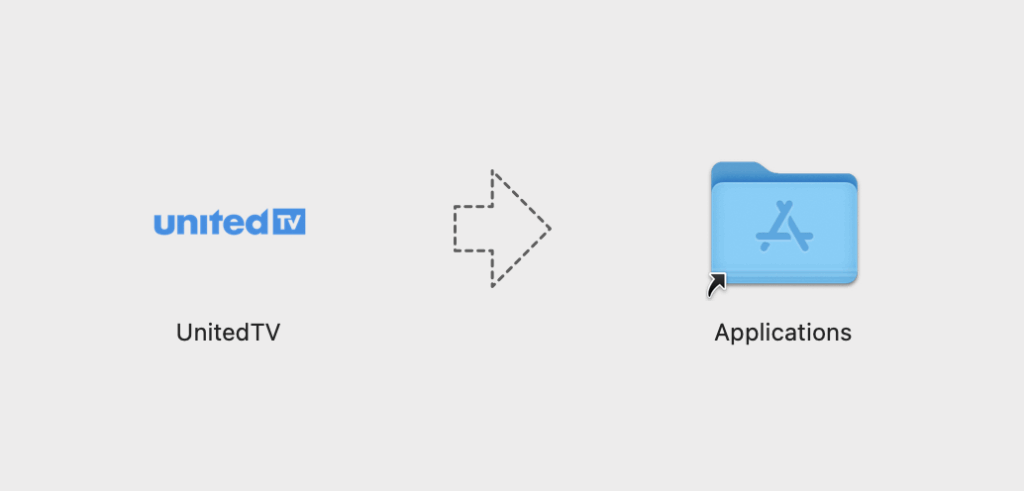
In the finder on your Mac, locate the UnitedTV App. Do not use Launchpad when opening for the first time.
On your keyboard, hold down the control key and click on the App icon.
Choose “Open” from the shortcut menu.
Alternative Steps to Open an Unverified App on macOS
Attempt to open the app
Double-click the app as usual.
macOS will show a warning saying it “can’t be opened because Apple cannot check it for malicious software.”
Click OK to close the message.
Go to System Settings
Click the Apple Menu in the top left.
Select System Settings (or System Preferences in older macOS).
Navigate to Privacy & Security.
Allow the app manually
Scroll down to the section that says Security.
You’ll see a message about the blocked app:
“[App Name] was blocked from opening because it is not from an identified developer.”
Click Open Anyway.
Confirm and open
macOS will ask for confirmation.
Click Open.
The app will now open and be allowed to run in the future.
Next you will need to add the user name and password that was provided with your subscription.
There is an unexpected behavior to be aware of. Even if it seems you have logged out, there is an extra step you need to take to actually quit the app.