
How To install The UnitedTV App (APK file) with Downloader
on a Chromcast
Please carefully follow this guide to ensure a smooth installation process and quickly begin enjoying a high-quality viewing experience on your chromecast device. First, we will help you enable ‘Unknown Sources’ on your device to ensure it is ready for installation. Then, we will assist you in getting the Downloader app, which will allow you to download the UnitedTV APK file. Lastly, we will provide you with a simple step-by-step guide on installing UnitedTV and setting everything up.
-
Find and install the Downloader app by searching for “Downloader app” using either the voice search or the text search. You need to include “app” in your search or else it won’t come up. An alternative way to find the app is to go to the “Apps” tab and scroll down to the “Tools” category. Downloader should be one of the first apps listed.

-
Once the app is installed, don’t bother launching it yet. You first need to enable developer mode so that you can allow Downloader to install apps from unknown sources. To do so, go to the device’s Settings screen. You can get there by either selecting your circle profile icon in the upper right of the home screen, or by pressing and holding the Home button on your remote to bring up the same menu.

-
Once you’re on the Settings screen, navigate to “System” and then to the “About” menu.

-
Scroll down to the “Android TV OS Build” item at the very bottom and repeatedly select it over and over. Nothing will happen at first as you select the menu item, but eventually a message at the bottom will appear saying that “You are now [#] steps away from being a developer.” Keep selecting the “Android TV OS Build” menu item until you see “You are now a developer!” at the bottom of the screen.

-
You can now enable Downloader to install apps from unknown sources. You do this by navigating to Settings > Apps > Security & Restrictions > Unknown Sources. From there, select Downloader to flip the setting to “Allowed.”

-
Now you can launch Downloader. Do so by finding the icon at the end of the “Your Apps” list on the “For You” screen or the “Apps” screen.

- Once Downloader opens, select “Allow” to grant permission for Downloader to save and access files. You must do this or you won’t be able to download anything. If you accidentally deny the permission, you can grant it from the Settings > Apps > Permissions > Storage menu.

-
You can now navigate to the Browser section of Downloader and enter the URL or short code for the file that you want to download. You can also just enter a search term directly into the URL field to perform a Google search.
Now click on the Empty Box and using the keyboard type this Code: 2530185
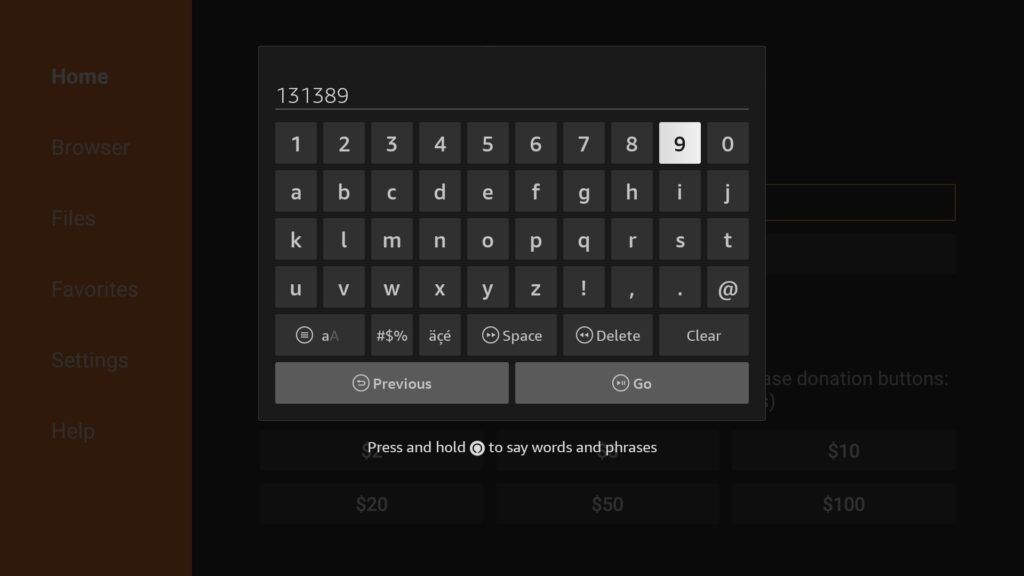
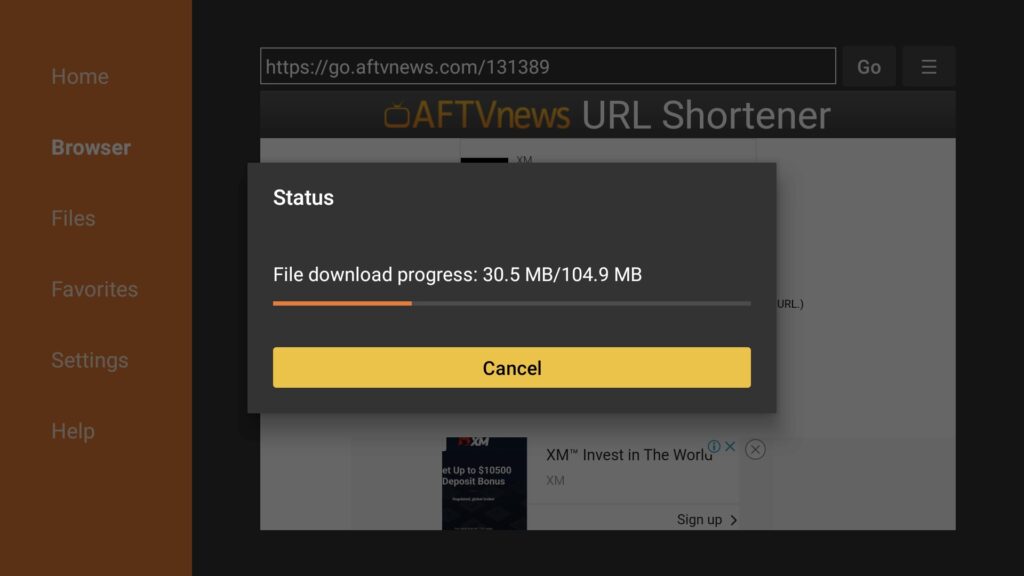
Wait there for 5 seconds and it will automatically Redirect and Download the app from aftv.news/2530185

Be patient, downloading will take some time, don’t click any key on the remote to avoid interruptions.
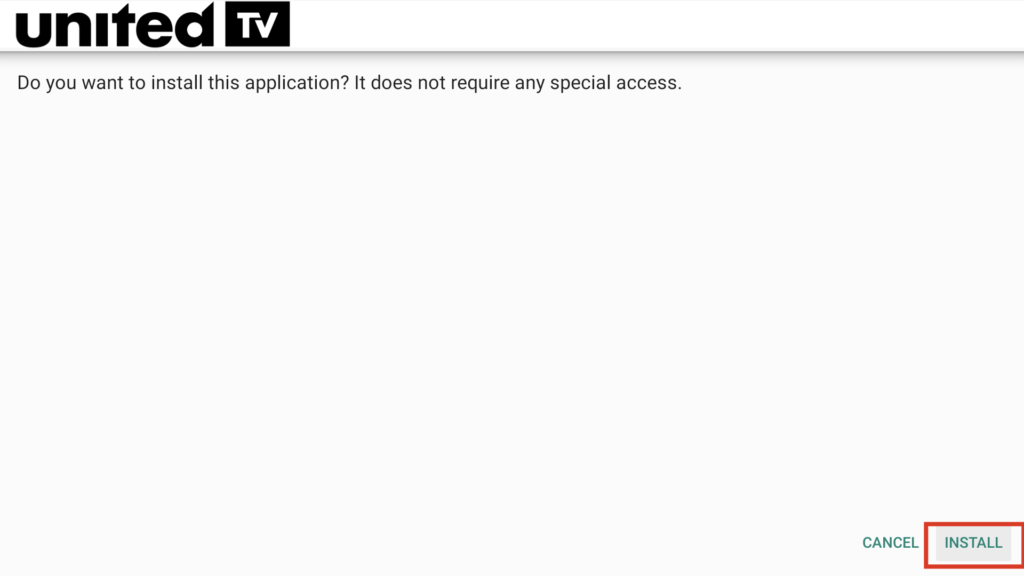
Once the app is downloaded, the Installation screen will appear, hit Install from the bottom right.
Wait as the installation will take 5 – 10 seconds, once completed click on Hamburger Menu or Open to launch the app.


If you need to reinstall the app for any reason, it is recommended to “Clear Cache”.
Clearing the app cache can help resolve errors and improve performance.
For Chromecast with Google TV
1. From the Home screen, go to Settings (gear icon in the top right).
2. Select Apps.
3. Choose See all apps.
4. Scroll to and select the app you’re using (e.g., Chrome, YouTube).
5. Click Clear cache.
⸻
For Basic Chromecast Devices (No TV Interface)
If you’re using an older Chromecast (no screen interface), cache cannot be cleared manually. Instead, try:
• Rebooting the device via the Google Home app.
• Factory resetting the device if problems persist.
⸻